
#Discovery
Discovery is the scan that turns your organization into a usable shape. It runs when you first open SERVICES for an org, and any time you press ↻ RE-SCAN.
#What the scan does
- Lists every AWS account your SSO assignment grants you.
- Fetches the roles available to you on each account.
- Groups accounts into services using their naming convention.
- Hands you a review table. Nothing is written yet.
The progress meter counts accounts as their roles resolve, so a large organization shows real progress instead of a mute spinner.
#The grouping heuristic
AWS organizations almost always name accounts along a convention that already encodes the service and the environment:
Core Services Development
Core Services Staging
Core Services Production
Core Services Sandbox
That is one service, core-services, with four environments. Sleipnir
splits the environment token off the end of the account name and groups
what remains. Dash-separated names work too:
platform-tools-dev
platform-tools-stg
platform-tools-prd
Accounts with no environment token — Backups, Security Tooling,
Audit — cannot be grouped along that dimension, so they import as
standalone services with a single global environment. They work
exactly like any other service; the environment selector is simply hidden
because there is nothing to choose between.
The heuristic was validated against a real 166-account organization — 40 multi-environment services, 8 single-environment, 17 standalone, with no mis-groupings. A structure-preserving synthetic version of that org is checked into the repository as a test fixture, so changes to the grouping logic have to keep passing it.
#Environments
Sleipnir recognises four environments plus the standalone case:
| Environment | Matches names like |
|---|---|
SBX |
Sandbox, sbx |
DEV |
Development, dev |
STG |
Staging, stg, stage |
PRD |
Production, prd, prod |
GLOBAL |
(no environment token — standalone accounts) |
They are always displayed in promotion order — sandbox, dev, staging, production — never alphabetically, because that order is what you actually reason about.
#Modes
Every role AWS offers you on an account is classified into one of three modes:
| Mode | Typical roles |
|---|---|
READONLY |
ReadOnlyAccess, ViewOnlyAccess |
POWERUSER |
PowerUserAccess, and org-specific variants |
ADMIN |
AdministratorAccess |
Roles that do not classify into any of these are kept and shown under OTHER in the expanded view, so nothing is hidden from you — they are just not offered as one of the three mode buttons.
#The review table
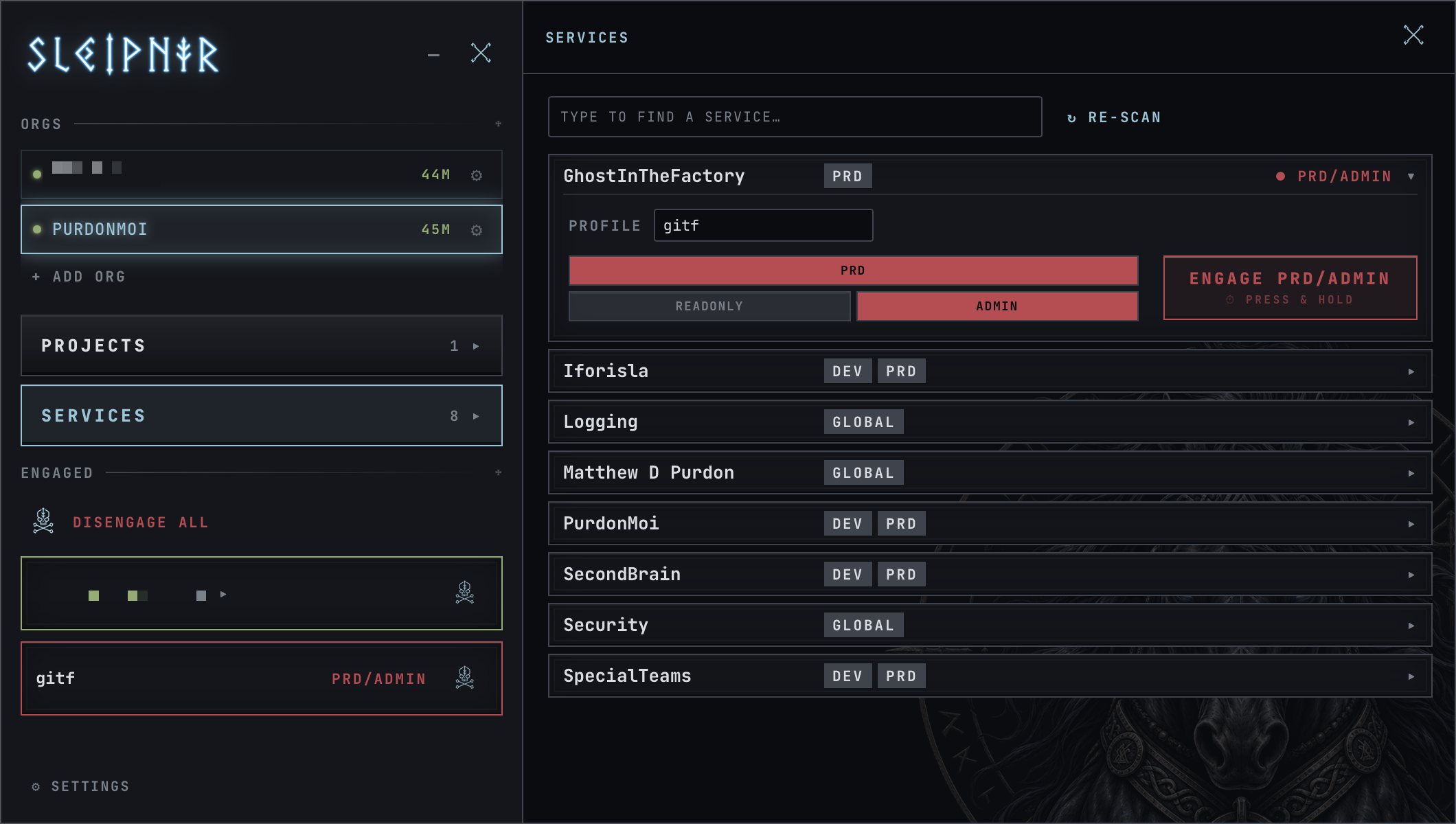
Each row is one proposed service:
- The display name is the human name, taken from the account names.
- The alias underneath is the AWS profile name you will type. It is derived from the display name and can be changed now or later.
- The grey chips are the environments found for that service.
- The checkbox decides whether it gets imported at all.
Expanding a row shows a matrix: one line per environment, one column per mode, with the role that will actually be used lit in the mode's colour and the alternatives dimmed.
#⚠ PICK ROLE
This badge means two or more roles on that account classify into the same
mode — for example both PowerUserAccess and SSTPowerUserAccess are
poweruser roles. Sleipnir cannot know which one your team intends.
A sensible default is already selected, so the badge is not a blocker. If
the default is wrong, expand the row and click the role you want. Picks
are per-environment: choosing SSTPowerUserAccess for SBX does not touch
STG or PRD, where it may not even exist.
Clicking a role marks the row resolved. You can also mark a row resolved
without changing anything, if the default was already correct — the
n/m PICKS RESOLVED counter is there so you can work through them
methodically and know when you are done.
#Importing
IMPORT writes the selected services into ~/.sleipnir/config.toml.
This is the first moment anything is persisted.
#Re-scanning
Press ↻ RE-SCAN in the services toolbar whenever your organization changes — a new account, a new environment for an existing service, a role that was granted to you since.
Re-scanning merges updates rather than starting over, so your alias renames, role picks and project memberships survive. Services you previously unchecked appear again as candidates.
If a service you expected is missing entirely, the cause is almost always permissions rather than naming: the scan can only see accounts your SSO assignment actually grants you. Check with your administrator before assuming the heuristic missed it.
#When the convention does not fit
Some organizations do not name accounts consistently. If grouping produces something wrong:
- Uncheck the bad rows and import the rest.
- Import the accounts as standalone services and treat each as its own thing — perfectly workable, just without the environment switcher.
- Rename aliases afterwards so the profile names read the way your team talks about them.
Discovery is a shortcut around manual configuration, not a requirement. A service that Sleipnir grouped wrongly is still a service you can use.